 How-to
How to Manage QuickBooks Vendor Payment Errors Step by Step
Last Updated: November 10, 2026
Quick Summary
Start by finding the cause of the failed payment, since QuickBooks vendor payment errors usually trace to a vendor profile, bill status, or funding account that does not match what the bank expects. Check the error message, then confirm the vendor details, bill, and payment method in that order. Reverse any payment in QuickBooks first, then reconcile the bank account.
- Note the exact error wording, vendor name, and date of the failed payment.
- Verify bank details with the vendor before editing them, since wrong details can misdirect future payments.
- A rejected ACH payment often comes from one wrong digit in the account or routing number.
- Confirm the funding account is active and has sufficient funds when a payment is declined.
- Reconcile the bank account after reversing a payment so your books match the bank.
Table of Contents
- Find the Cause of the QuickBooks Vendor Payment Error
- Fix Rejected ACH Payments and Declined Payments in QuickBooks Online
- Reverse a Vendor Payment Safely and Reconcile Your Books
- Frequently Asked Questions
Find the Cause of the QuickBooks Vendor Payment Error
Paldino Company CPA helps small businesses work through QuickBooks vendor payment errors, and the fix starts with finding the cause. Failed payments often trace back to a vendor record, a bill, or a funding account that doesn't match what the bank expects.
Start with the error message. Note the exact wording, the vendor name, and the date of the failed payment.
Then check these items in order:
- Vendor profile: confirm the name, address, and bank details are correct.
- Bill status: confirm the bill is open and the amount matches.
- Payment method: confirm the funding account is active and has enough funds.
Watch out: editing bank details on an existing vendor can send future payments to the wrong account, so verify every change with the vendor first.
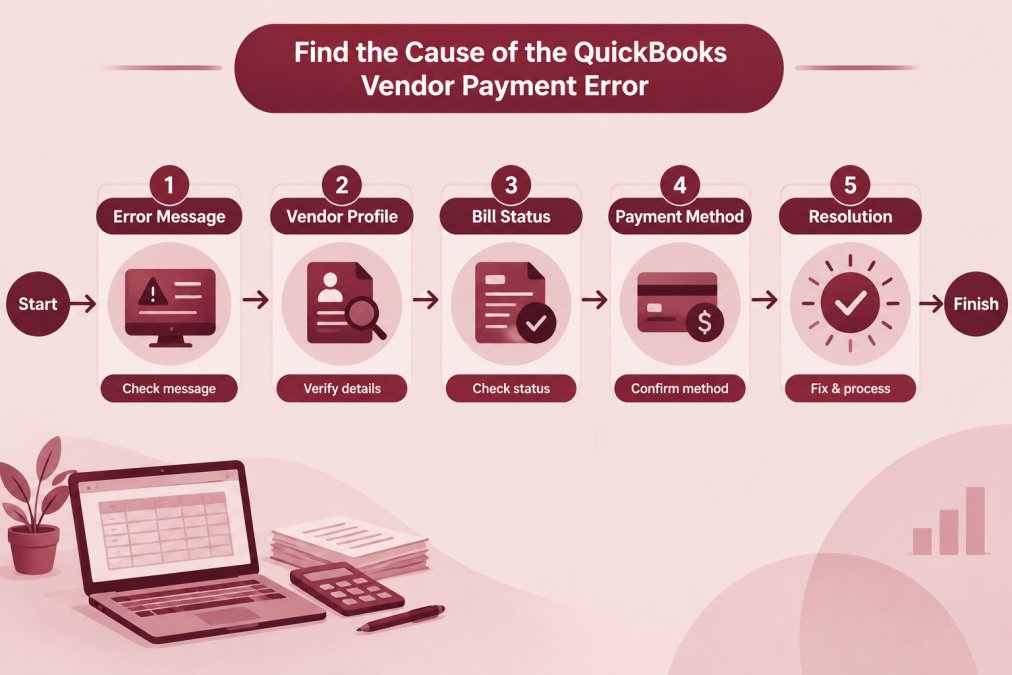
Use this checklist to narrow down where the failed payment originates.
| Check | What to confirm | Common problem |
|---|---|---|
| Vendor profile | Name, address, and bank details are correct | Outdated or edited bank details |
| Bill status | Bill is open and the amount matches | Closed bill or mismatched amount |
| Payment method | Funding account is active and funded | Insufficient funds or inactive account |
Fix Rejected ACH Payments and Declined Payments in QuickBooks Online
A rejected ACH payment usually means the bank could not process the transfer. Check the vendor's account number and routing number first, since a single wrong digit causes most rejections.
If the payment was declined rather than rejected, the funding account is the likely problem. Confirm the account has sufficient funds and that the card or bank link hasn't expired.
Many businesses find that a QuickBooks Online review of these details resolves the issue within a day. If the problem continues, a QuickBooks specialist can review the setup with you. QuickBooks Online help on payment errors
Reverse a Vendor Payment Safely and Reconcile Your Books
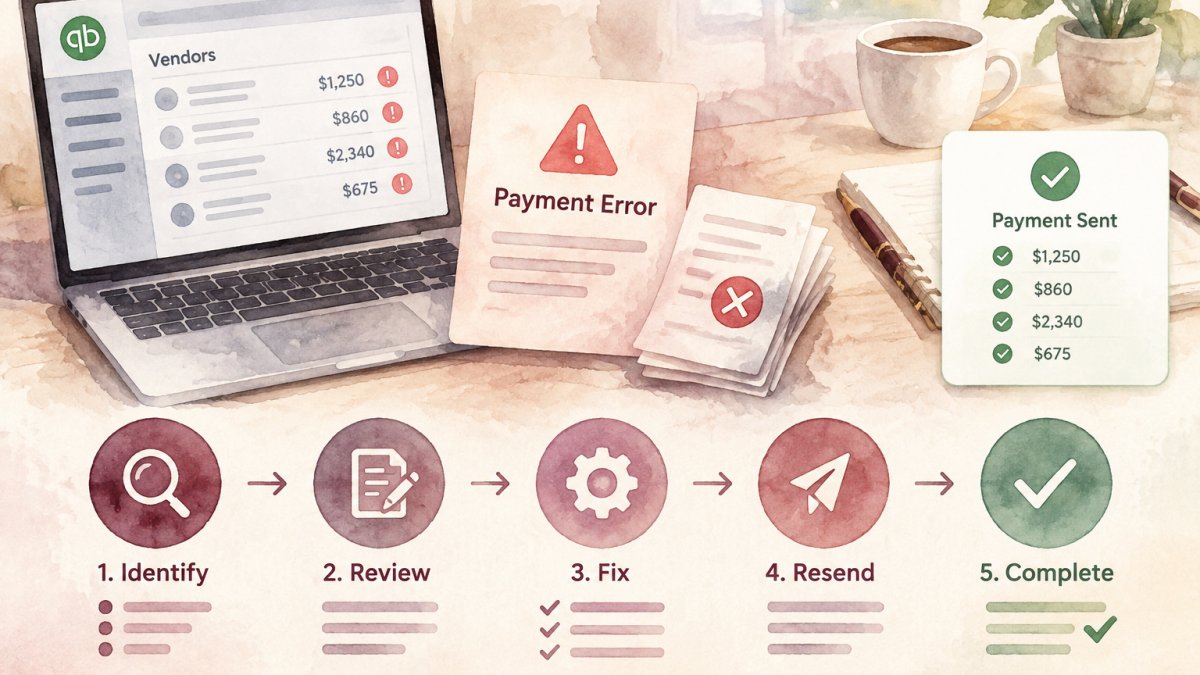
Reversing a payment goes more smoothly when you do it in the right order. Void or reverse the payment in QuickBooks first, then confirm the bank shows the matching transaction.
Reconcile the bank account after the reversal so your books match the bank. Intuit recommends centralizing vendor data to reduce these errors. Intuit guidance on improving vendor payments
Next step: If you keep running into QuickBooks vendor payment errors, bring your records to Paldino Company CPA. Paldino Company CPA can review your vendor setup and help reconcile your books. Schedule an Appointment.
Frequently Asked Questions
How do I reverse a vendor payment in QuickBooks Online?
Open the original bill payment, select the transaction, and use the option to void or delete it, depending on whether the payment was recorded from a bill or a check. Confirm the bank account and vendor are correct before reversing, because the reversal changes your bank reconciliation. If the payment has already cleared or was sent electronically, contact your bank or the vendor first, since a voided record does not recall funds. Keep a note of the reversal in your records so the audit trail stays clear for your accountant.
What should I do if a vendor payment was sent to the wrong recipient?
Stop further payments to that vendor record and check the vendor profile for a wrong bank account or duplicate entry. Contact the recipient and your bank as soon as possible to request a return or recall, since timing affects whether funds can be recovered. Then reverse the incorrect payment in QuickBooks and record the correct payment to the right vendor. Document each step so your books reflect what actually happened.
How do I record a bounced or rejected vendor payment in QuickBooks Online?
When your bank rejects an ACH or electronic payment, the funds return to your account and the payment should be reversed rather than left as paid. Find the payment in QuickBooks, void or reverse it, and confirm the bill returns to an open status. Reissue the payment once the vendor's bank details and account balance are verified. Reconcile the account afterward so the rejected amount does not remain in your records.